| Concept | What it means here |
|---|---|
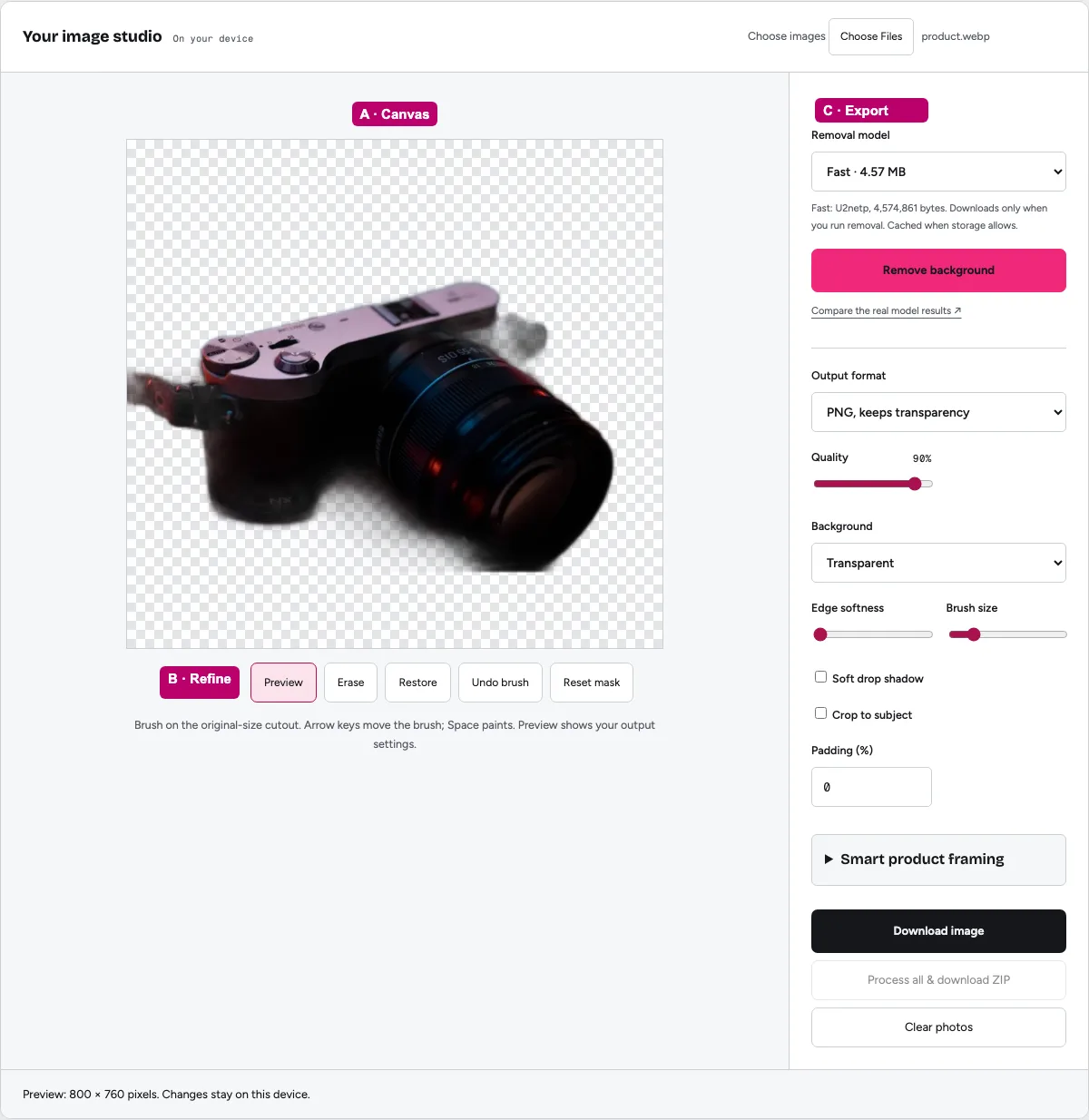
| Erase | Remove coverage from a retained background region |
| Restore | Bring back coverage over missing source detail |
| Undo | Return from an unhelpful local correction |
Correct the selection before styling it
A wrong mask can be hidden temporarily by a favorable background or a strong shadow. That does not make the selection accurate. Begin with the original and identify which visible parts belong to the subject. Correct an omitted opaque detail or a retained scene fragment before choosing the final composition.
The brush edits coverage, not the underlying source photograph. Restoring a region brings back the original pixels in that region, including any background mixed into them. It does not generate a new object or reconstruct an invisible feature. This makes it useful for clear local corrections while leaving harder matting problems unresolved.
Worked example: a camera strap
If the automatic result omits part of the strap, select Restore and use a brush suited to that narrow region. Paint only where the original strap belongs. Inspect the gap inside the strap afterward; restoring too broadly can bring the backdrop back with it. Use Erase to correct a clearly retained patch, or Undo when a stroke worsens the result.
Compare on a contrasting background. A mistake that blends into a pale preview can become clear on a dark canvas. After the selection is satisfactory, return to the intended delivery background. This sequence keeps the correction based on visible source evidence rather than a guess about what the product should look like.
Use a brush size appropriate to the feature
A large brush is useful for a detached background island but risky beside fine detail. A small brush gives more local control but cannot make an ambiguous translucent edge exact. Choose the size based on the region you can confidently identify. Avoid broad strokes that smooth away meaningful parts of the subject.
The editor also supports keyboard movement on the focused canvas and painting with Space. Read the visible brush instructions and keep the canvas focused while using those controls. Keyboard access does not remove the need for visual judgment, but it provides an alternative to pointer-only interaction.
Keep softness as a separate decision
Once the mask is correctly placed, consider whether its edge needs a gentler transition. Softness should not compensate for a large selection error. Too much can make an opaque object appear translucent or create a halo. Inspect both the boundary and the subject’s actual material.
For hair, glass and translucent fabric, a manual mask can still carry color from the old backdrop. The brush does not perform specialist foreground-color estimation. If that mixed edge is central to the image, a better source or a dedicated matting workflow may be the appropriate next step.
Save a reusable result
Export a transparent master when the workflow allows it, then make opaque destination versions separately. Reopen the actual download to check alpha and dimensions. Keep the original because the downloaded cutout does not contain the full editable history of the browser session.
For a batch, do not assume that the visible image’s manual correction applies to other sources. Each photograph has a different mask. Separate images needing individual repair and inspect the final archive before publication. A repeated export setting is useful, but it is not a repeated human judgment.
Put this method into practice: open the relevant local image tool →. Keep your original and inspect the exported copy.
Questions that come up
Does Restore invent missing detail?
No. It brings original source pixels back into the visible mask. It cannot recover something that was not captured.
Why did Restore bring the background back too?
The brush affects a region of the original. A broad stroke or mixed edge can include both subject and backdrop.
Does Undo preserve unlimited history?
No. Brush history is bounded by the workspace’s memory policy. Keep the original and save useful outputs rather than relying on an indefinite session.
Sources & method
Last checked: . Official rules can change. Calculated presets are identified separately.
- Published tool specifications. Backdropless. Checked 2026-10-29.
- Actual model evaluation. Backdropless. Checked 2026-10-29.
- PNG Specification, Third Edition. W3C. Checked 2026-10-29.