Start with the right source
Start with a photograph you have permission to edit and use. School photographers may supply downloads under specific terms, so check those before changing the file. For a class project or profile, a crop and resize may be enough. Keep the child’s actual face and expression intact rather than trying to make an identity-style picture look more polished.
Inspect what the edit changes
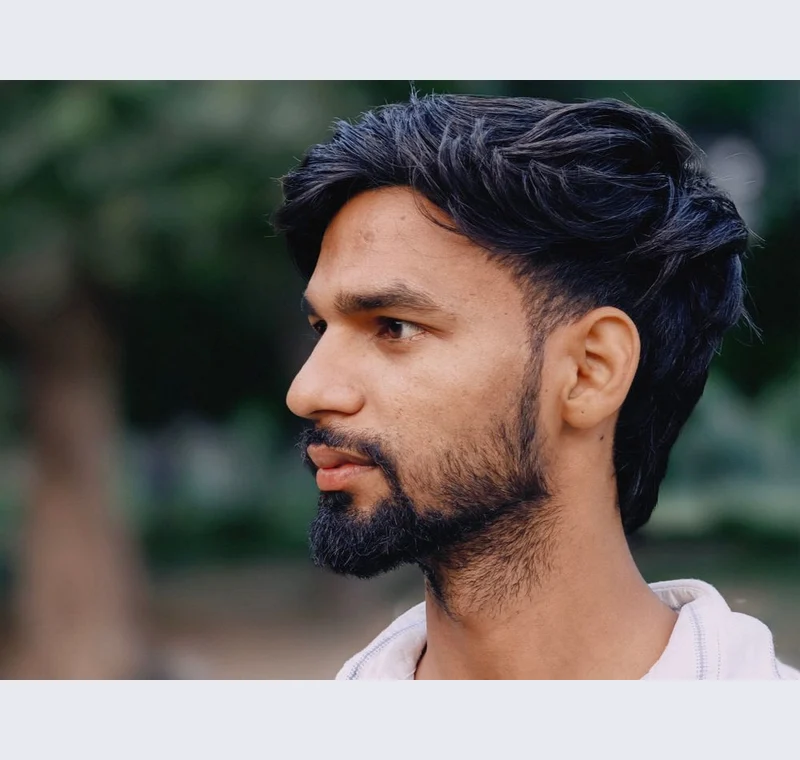
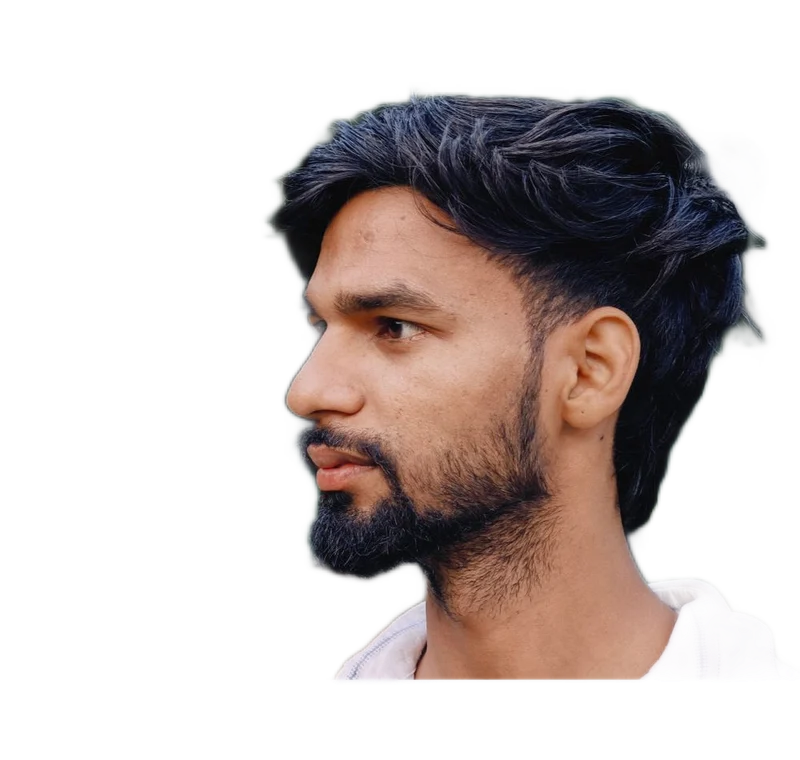
Check that the crop retains the whole head and that a circular display does not remove the chin or hair. If background removal is permitted, inspect the collar, hairline and shoulders carefully. Avoid adding a scene that could imply the child was photographed somewhere else when the image is being used as a record.
Keep these limits in view
The adult portrait example is an editing demonstration, not a school-photo sample or a claim about processing children’s images. The app does not upload image contents, but the downloaded file still needs careful handling on shared computers. Clear the workspace when you finish.
Save a usable handoff
Choose PNG when another design tool needs a transparent layer. Choose JPG when the destination expects an opaque photograph. WebP is useful when the receiving app accepts it. The download checks the actual output type rather than giving a file a misleading extension.
The editor processes image contents on your device. Background removal downloads the model first, then uses local computation. Keep your original and inspect the exported copy before publishing. The app does not send the finished image to a platform, guarantee acceptance or replace the specialist workflow described above.
Sources & method
Last checked: . Official rules can change. Calculated presets are identified separately.
- Published tool specifications. Backdropless. Checked 2026-10-29.
- U2-Net: Going Deeper with Nested U-Structure. Xuebin Qin et al.. Checked 2026-10-29.
- Image file type and format guide. MDN Web Docs. Checked 2026-10-29.