Start with the right source
Choose a recent portrait with the face sharply focused and enough space around the head. A close crop can work well in an avatar, but leave room for the platform’s circular display. Decide between a quiet solid background and a mild blur of the existing scene. The aim is recognition, so keep the facial proportions and expression from the original photograph.
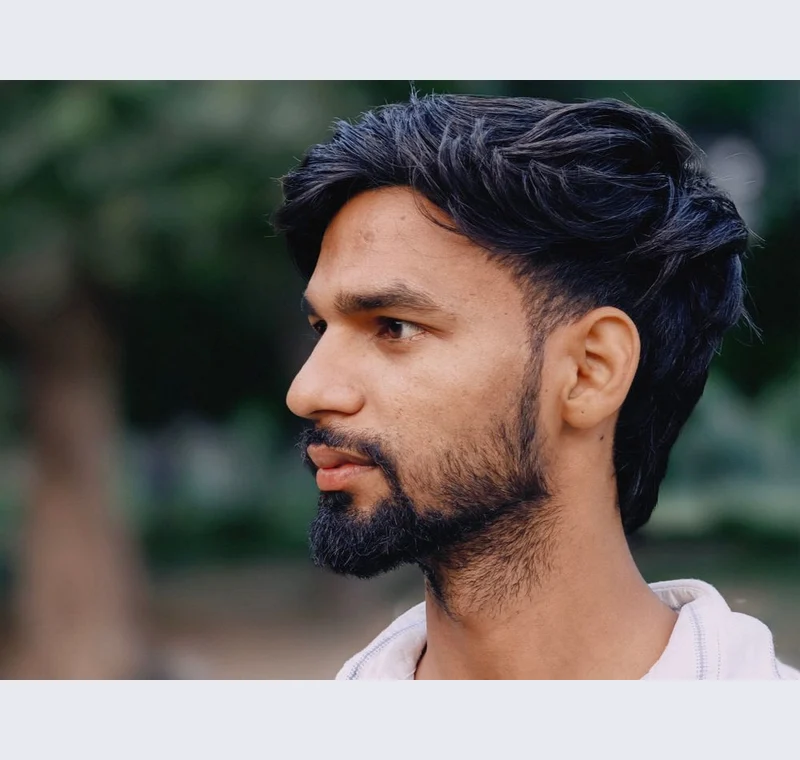
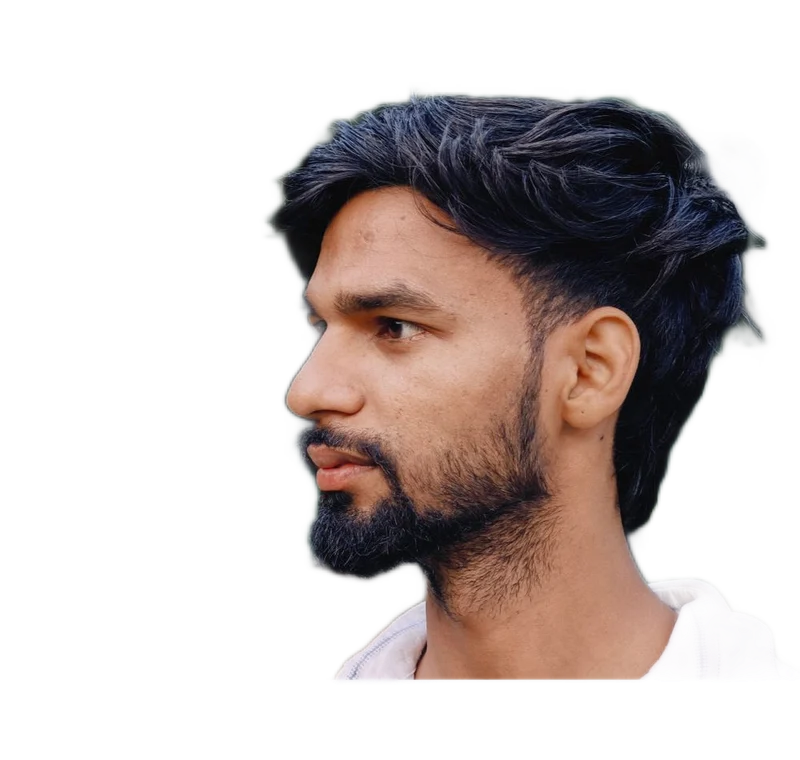
Inspect what the edit changes
Review ears, glasses, hair and the line between clothing and background. A mask can accidentally remove a dark frame or merge similar colors at the shoulders. Check the exported picture against both a light and a dark surface. If the edge looks artificial, reduce the added softness and restore the missing boundary.
Keep these limits in view
Background blur does not reliably remove private information from the source. A sign or recognizable location may remain visible. Crop that information out or use a genuinely opaque replacement background, then inspect the entire exported image.
Save a usable handoff
Choose PNG when another design tool needs a transparent layer. Choose JPG when the destination expects an opaque photograph. WebP is useful when the receiving app accepts it. The download checks the actual output type rather than giving a file a misleading extension.
The editor processes image contents on your device. Background removal downloads the model first, then uses local computation. Keep your original and inspect the exported copy before publishing. The app does not send the finished image to a platform, guarantee acceptance or replace the specialist workflow described above.
Sources & method
Last checked: . Official rules can change. Calculated presets are identified separately.
- Published tool specifications. Backdropless. Checked 2026-10-29.
- U2-Net: Going Deeper with Nested U-Structure. Xuebin Qin et al.. Checked 2026-10-29.
- Image file type and format guide. MDN Web Docs. Checked 2026-10-29.